How to Assign One Task to Multiple People (and Still Know Who Owns It)
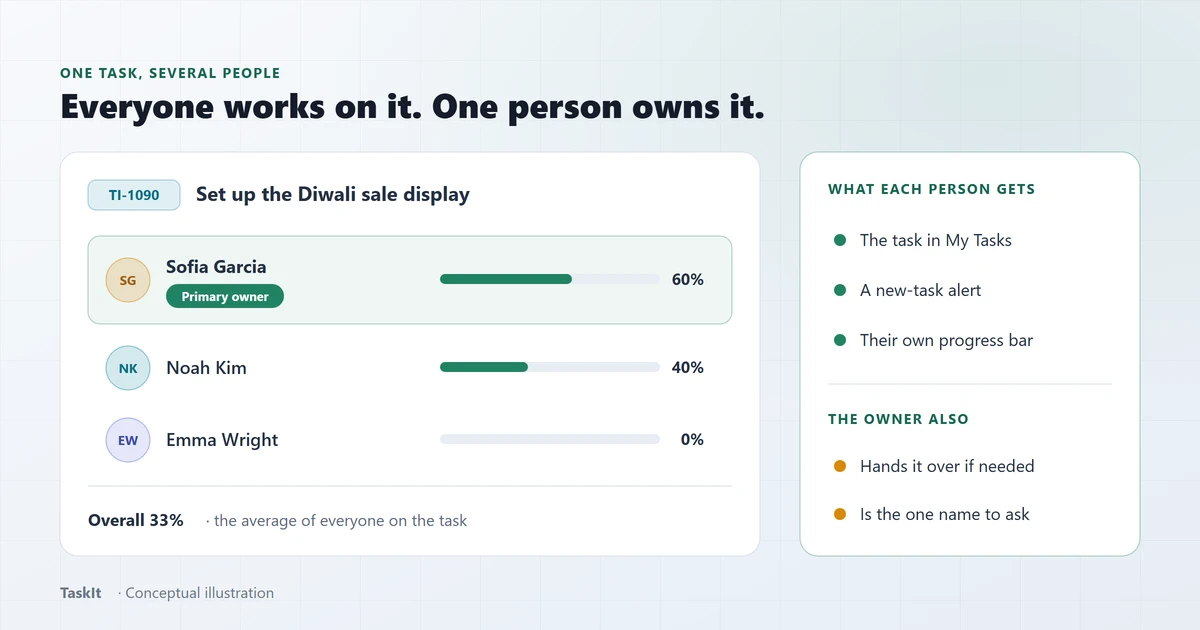
In TaskIt, open New Task and pick several people in Assign to. The first person you pick becomes the primary owner. Everyone else works on the task with them. Each person sees the task in their own list and logs their own progress, and the task shows one overall number. So the work is shared, but one name still answers for it.
In this article
Why shared tasks usually go wrong
When everyone owns a task, nobody owns it. Each person thinks someone else is on it.
Some jobs really need more than one person. A shop display. A stock count. A client visit. The usual fix is a group message: "Can you three handle this?" Then nobody knows who is doing what, and the manager has to ask.
The answer is simple: share the work, but keep one owner. That is how it works in TaskIt.
How to assign a task to several people
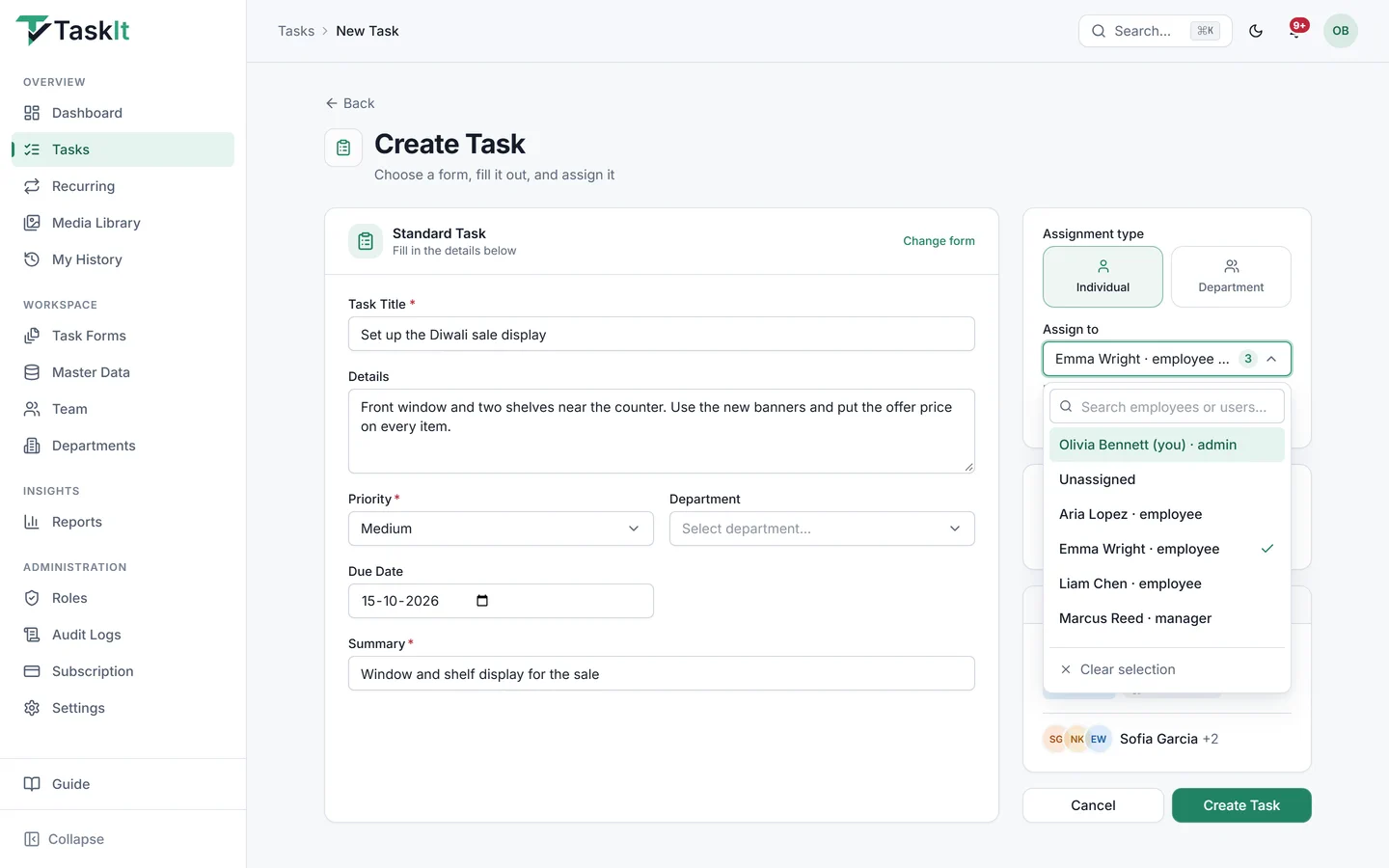
It takes four steps, all on the Create Task page.
- Click New Task.
- Fill in the title and details as usual.
- Under Assign to, tick each person. Pick the owner first. (You are ticked by default — untick yourself if the task is not for you.)
- Click Create Task.
Tip
What everyone sees on the task
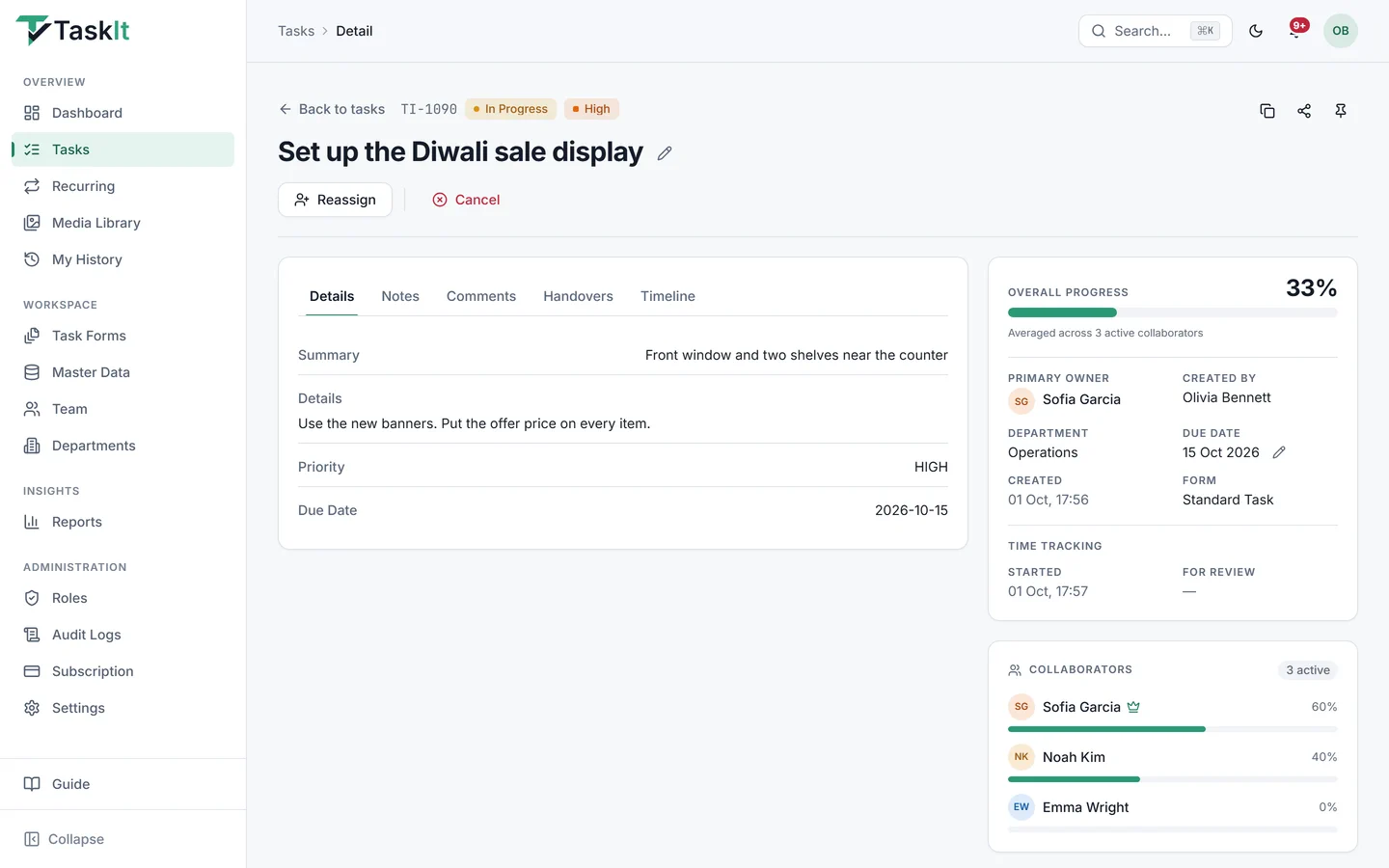
Each person gets the task in their list, and the task page shows who owns it and how far each person has got.
- It is in everyone’s list. The task shows up in My Tasks for each person on it.
- Everyone is told. Each person gets a new-task notification. If your workspace uses WhatsApp alerts, one message goes out that names everyone on the task.
- Each person logs their own progress. Nobody overwrites anyone else.
- One overall number. The task’s progress is the average of everyone on it. Three people at 60%, 40% and 0% show as 33%.
- Checklists count too. On a checklist task, progress follows the ticked items.
What the primary owner does
The owner is the one name a manager asks about. Some actions belong only to them.
| Action | Primary owner | Others on the task |
|---|---|---|
| See it in My Tasks | Yes | Yes |
| Log their own progress | Yes | Yes |
| Send it for review | Yes | Yes |
| Hand it over to someone else | Yes | No |
| Mark it as unable to complete | Yes | No |
Marking a task Completed depends on the person’s role, not on the task. By default, managers and admins can do it. To move the whole task to someone new, the owner uses a handover.
When to use it, and when not to
Use several people when they work at the same time. Use a handover when they work one after another.
Good fit
- Setting up a display or an event together.
- A stock count split across a team.
- A site visit with two or three staff.
Better another way
- Steps in order (one drafts, one checks): use a handover or review instead.
- "Whoever is free" work: assign it to a whole department and let the first person claim it.
- Recurring tasks: these go to one person. TaskIt will ask you to pick one.
Frequently asked questions
Yes. On Create Task, pick several people under Assign to. The first person you pick becomes the primary owner, and everyone else works on the task with them.
The primary owner — the first person you picked. Their name is shown at the top of the task, and only they can hand it over or mark it as unable to complete.
Each person logs their own progress. The task shows the average of everyone on it, so three people at 60%, 40% and 0% show as 33% overall.
Up to 50 people can be picked for one task.
No. A recurring task goes to one person. To share recurring work, assign it to a department so the first free person can claim it.
Written by
Dhyey Mehta
All articles by Dhyey MehtaRelated reading
Articles and pages that cover the next question this one raises.

How to Manage Tasks Across Multiple Departments
Why work stalls when it crosses a team boundary, and how assigning to a department — rather than guessing a name — fixes the handoff.
Read article
Task Handover Process: How to Transfer Work Without Losing Context
The difference between a handover and a reassignment, the five things that must move with the work, and a process that survives leave, shift changes and blocked tasks.
Read article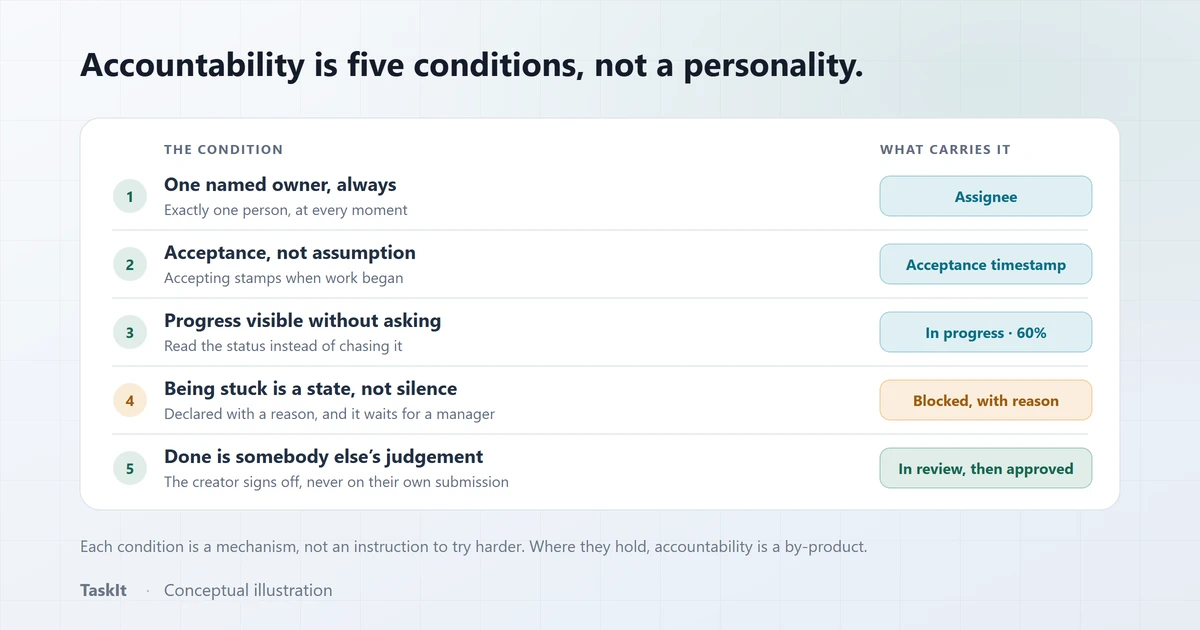
How to Improve Employee Accountability at Work
Why "hold people accountable" fails as an instruction, and the five conditions that make accountability happen without anyone being chased.
Read articleTask management
Create, assign, track and review every task in one place.
OpenDepartment tasks
Send work to a whole team and let the first free person claim it.
OpenTask delegation
Hand out work clearly, with an owner and a due date on every task.
OpenSee how it works on your own tasks
Every capability described above is available during the 30-day free trial.