How to Install TaskIt as an App on Your Phone or Computer
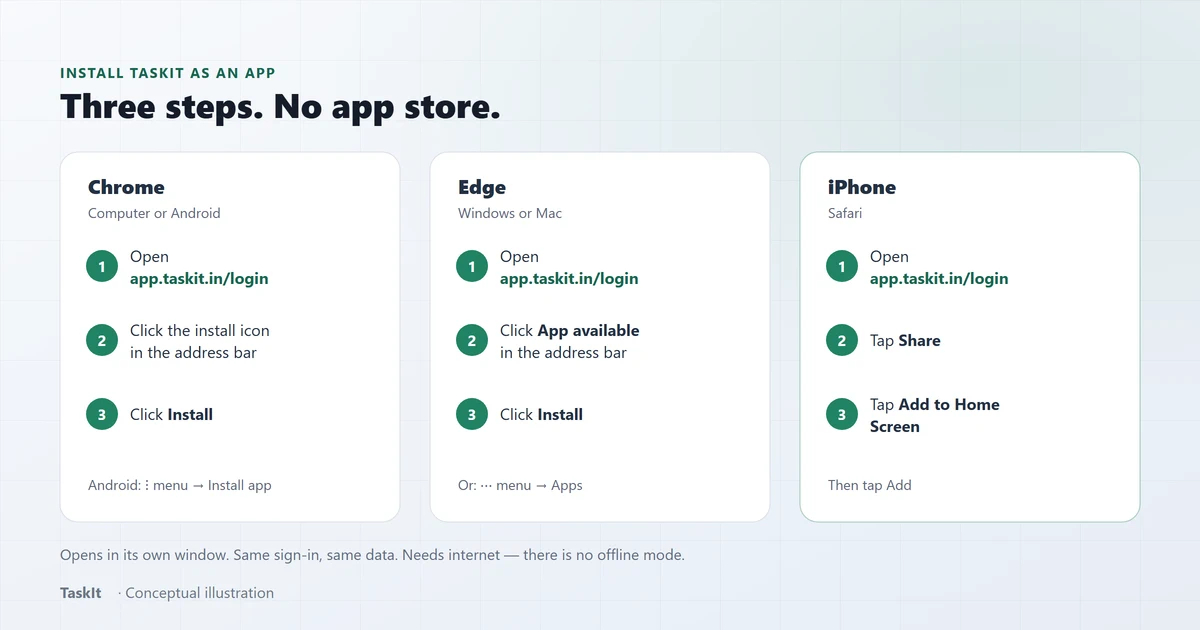
Open app.taskit.in/login in your browser. In Chrome or Edge, click the install icon in the address bar, then Install. On iPhone, use Safari: tap Share, then Add to Home Screen. TaskIt then opens from its own icon, in its own window, with the same sign-in and the same tasks. You do not need an app store.
In this article
Do I need to download anything?
No. TaskIt works in your browser. Installing just gives it an icon and its own window.
You can keep using TaskIt in a browser tab. Installing is optional. It is handy for people who open TaskIt many times a day: one tap on the icon, and it opens straight away, without tabs or an address bar.
Install from the app address
Chrome on a computer
Three clicks.
- Open app.taskit.in/login in Chrome.
- Click the install icon at the right end of the address bar.
- Click Install.
TaskIt now has its own icon. On Windows you will find it in the Start menu.
Microsoft Edge
Same idea as Chrome.
- Open app.taskit.in/login in Edge.
- Click App available in the address bar. (Or open the ⋯ menu, then Apps.)
- Click Install.
Android phone (Chrome)
Use the menu at the top right.
- Open app.taskit.in/login in Chrome.
- Tap the ⋮ menu.
- Tap Install app (on some phones it says Add to Home screen).
iPhone or iPad (Safari)
Use Safari for this. It takes four taps.
- Open app.taskit.in/login in Safari.
- Tap the Share button (the square with an arrow).
- Scroll down and tap Add to Home Screen.
- Tap Add.
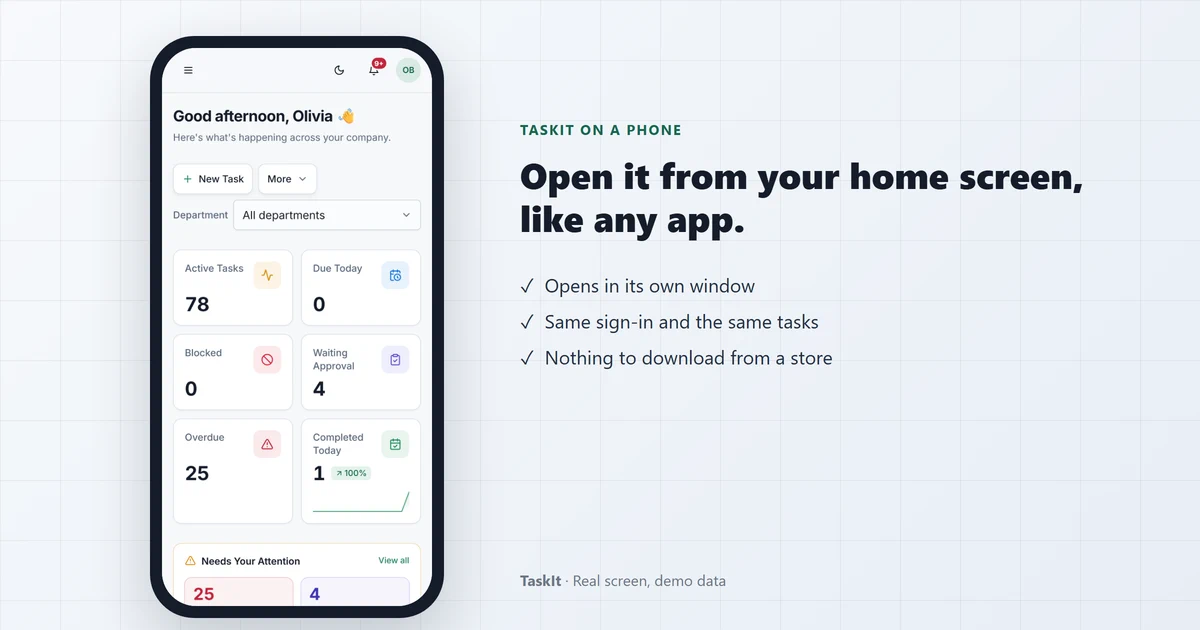
What changes after you install
Only how you open it. Your account, tasks and settings are exactly the same.
- It opens in its own window, without browser tabs.
- If you are already signed in, it goes straight to your dashboard. If not, you see the sign-in page.
- It needs the internet. There is no offline mode.
- Alerts work as before. You still get notifications inside TaskIt, and on WhatsApp if your workspace uses WhatsApp alerts. The installed app does not send its own phone notifications.
- Downloads work. Report exports save normally, on iPhone too.
Don’t see the install option?
Check these three things.
- You are on app.taskit.in, not www.taskit.in.
- On iPhone, you are using Safari.
- TaskIt is not already installed. If it is, look for its icon instead.
Still stuck? Contact us and we will walk you through it.
Frequently asked questions
Yes, without an app store. Open app.taskit.in/login on your phone and add it to your home screen: in Chrome on Android use the menu and tap Install app, and on iPhone use Safari, tap Share, then Add to Home Screen.
No. It is the same TaskIt account. Installing only adds an icon and its own window.
No. TaskIt needs an internet connection, installed or not.
Because www.taskit.in is the website, not the app. Install from app.taskit.in/login.
Remove it like any other app. On iPhone, press and hold the icon and choose Remove App. On a computer, open TaskIt, open its menu and choose Uninstall. Your account and tasks are not affected.
Written by
Dhyey Mehta
All articles by Dhyey MehtaRelated reading
Articles and pages that cover the next question this one raises.
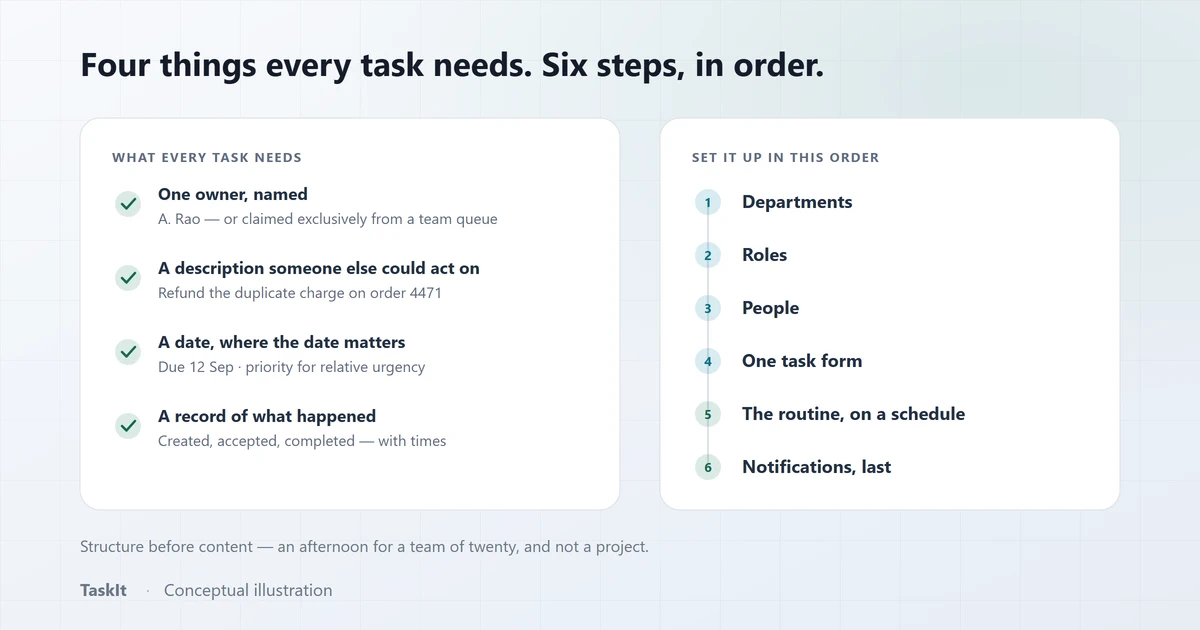
How to Manage Tasks in a Small Business
The moment a small business outgrows one person remembering everything, and the smallest structure that reliably replaces it.
Read article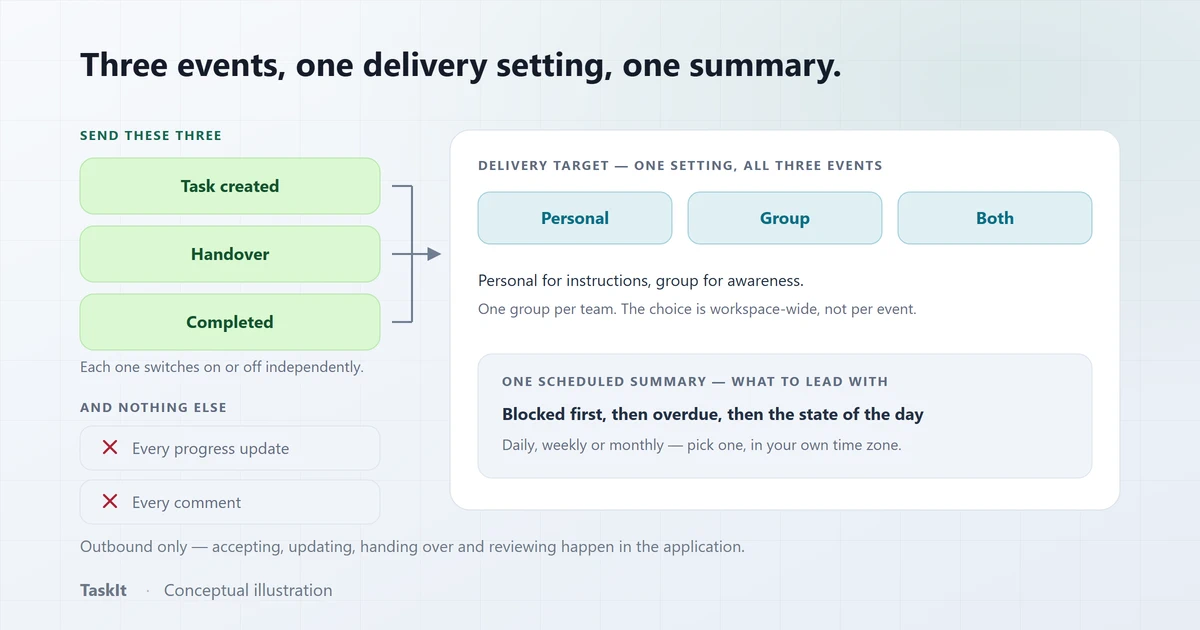
WhatsApp Task Management for Business: A Practical Rollout
The decisions that decide whether WhatsApp notifications get read or muted — volume, targeting, template wording and what to do when delivery fails.
Read article
What Is Task Management? A Complete Guide for Businesses
What task management actually is, the five things every task needs, and the problems that appear when work is tracked in chat instead.
Read articleHow TaskIt works
From sign-up to the first assigned task, step by step.
OpenRemote teams
Run a team that is out in the field or working from home.
OpenWhatsApp notifications
Task alerts on WhatsApp, for people who are rarely at a desk.
OpenSee how it works on your own tasks
Every capability described above is available during the 30-day free trial.