How to Reopen a Completed Task (and Keep Its History)
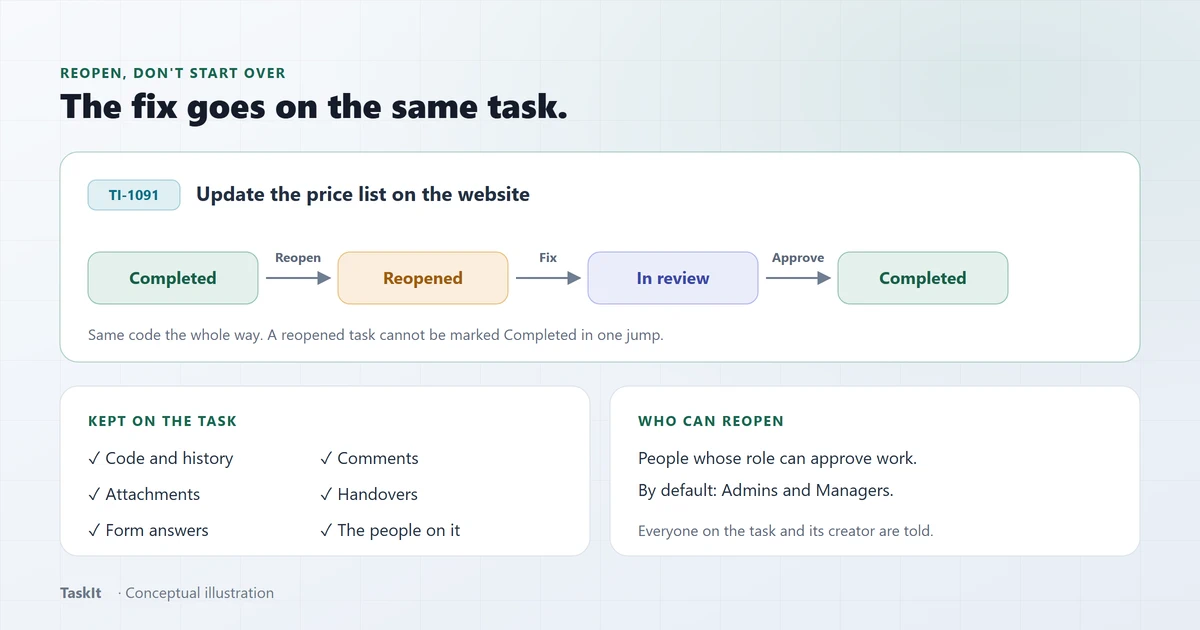
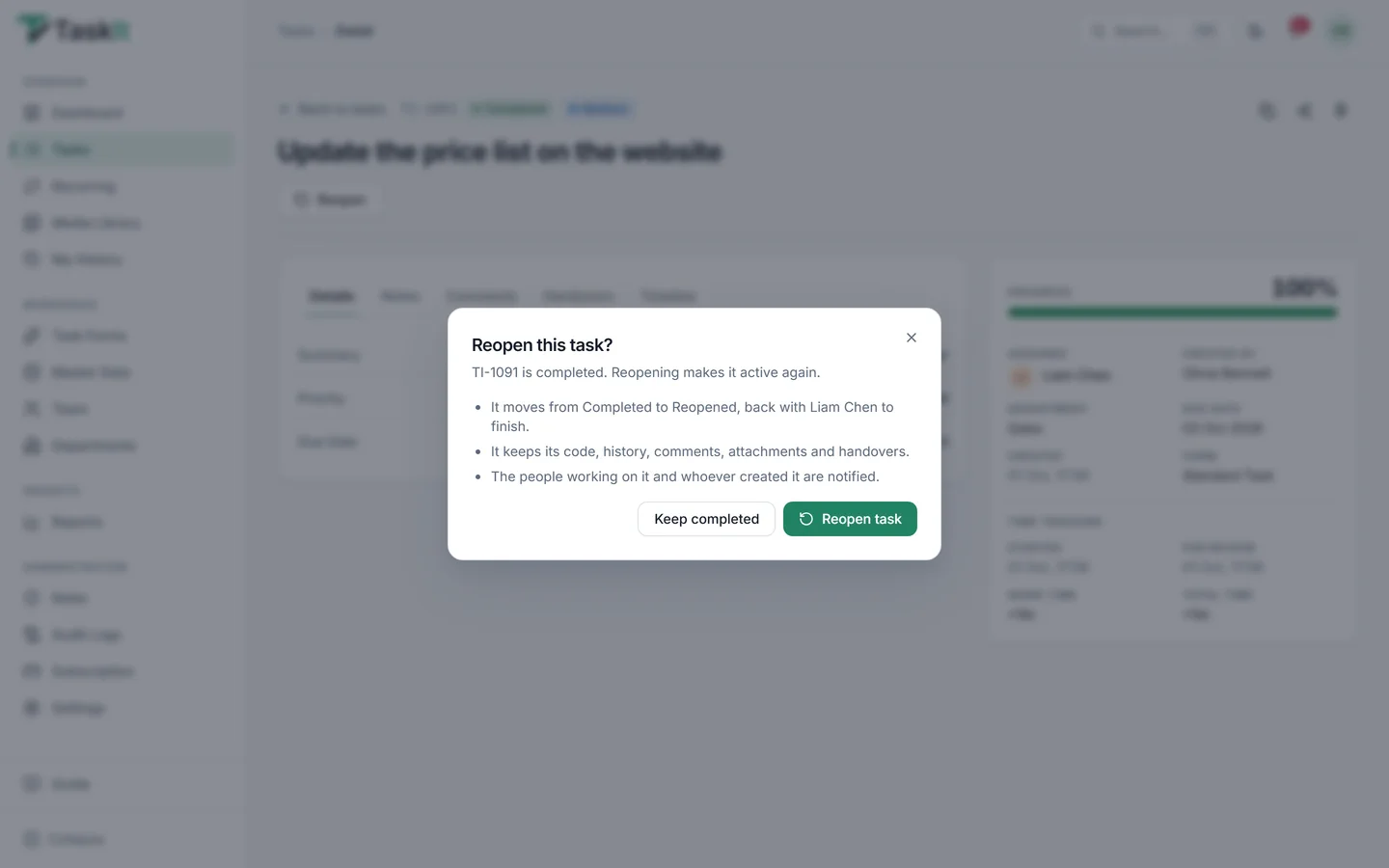
Open the completed task and click Reopen, then Reopen task to confirm. The task moves to Reopened and goes back to the same person. It keeps its code, history, comments, attachments and handovers. They fix the work and send it for review again. By default, admins and managers can reopen a task.
In this article
Why reopen instead of making a new task?
A new task starts with no history. Reopening keeps the whole story on one record.
Say a price list was updated and closed. Next day, a customer spots a wrong price. If you make a new task, the old one still says "done", and the new one has no files, no comments and no link to what went wrong.
Reopen the old task instead. Everyone can see what was done, what was missed, and when it was fixed — in one place, under one task code.
How to reopen a task
Three clicks, from the task itself.
- Open the task. It must be Completed.
- Click Reopen at the top of the task.
- Read the box, then click Reopen task. (Click Keep completed to back out.)
Tip: say what needs fixing
What stays the same
Only the status changes. Everything else stays on the task.
- The task code, for example TI-1091.
- The full history and timeline.
- Comments, notes and attachments.
- Handovers and form answers.
- The people working on it.
The timeline gets a new line: Task reopened after completion. The change is also written to the audit log.
What happens next
The task goes back to the same person. They fix it and send it for review again.
- The task shows Reopened and is back with the person who did it.
- The people on the task and the person who created it get a notification. You, the one who reopened it, do not.
- They fix the work and send it for review.
- A reviewer approves it, and it is Completed again.
A reopened task cannot jump straight back to Completed. Until it is finished again, it counts as open work.
Want a WhatsApp message too?
Who can reopen a task
People whose role can approve work. By default, that is admins and managers.
- Admins and managers: yes, by default.
- Employees: no, unless an admin gives their role the right to approve work.
- Only completed tasks. A cancelled task cannot be reopened this way.
Reopening is not the same as rejecting a review. A rejection happens before the task is done. Reopening is for after. Both send the work back on the same task — see how reviews work.
Frequently asked questions
Open the completed task, click Reopen, then click Reopen task to confirm. The task moves to Reopened and goes back to the same person.
Yes. It keeps the same task code, history, comments, attachments, handovers and form answers. Only the status changes.
Anyone whose role can approve work. By default that is admins and managers. Employees cannot, unless an admin gives their role that right.
No. TaskIt does not ask for one. It is a good habit to add a comment on the task saying what needs fixing.
No. Only a completed task can be reopened.
Written by
Esha Mehta
All articles by Esha MehtaRelated reading
Articles and pages that cover the next question this one raises.

Why Businesses Need an Audit Trail for Task Management
The difference between an activity feed and an audit log, the questions each one answers, and why partial coverage should always be stated rather than implied.
Read article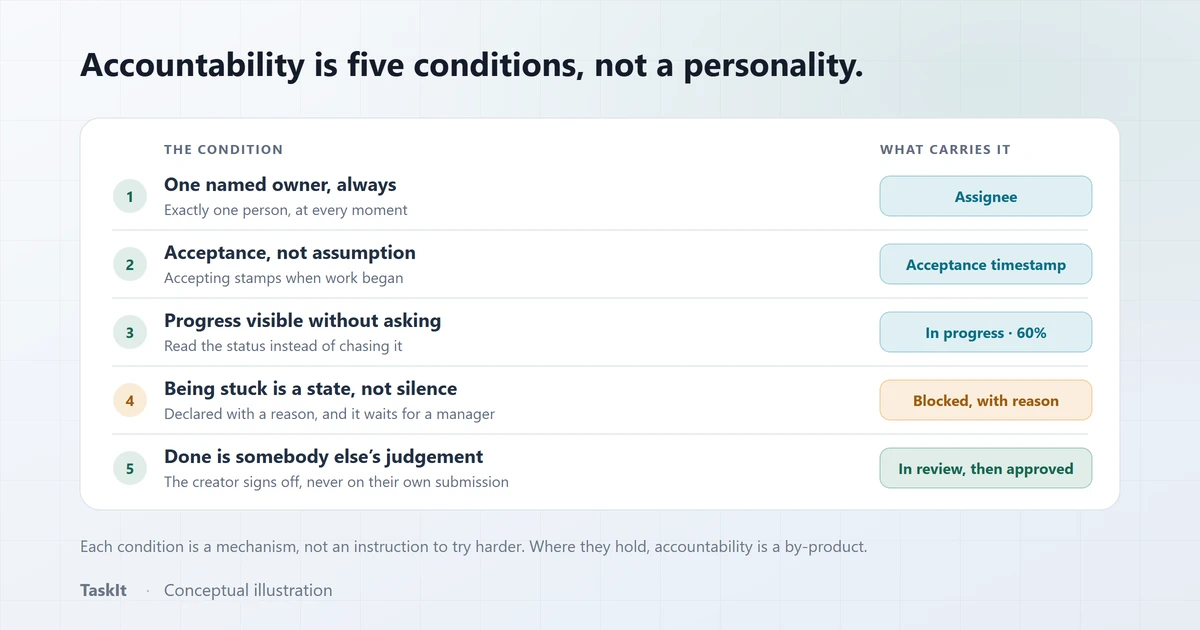
How to Improve Employee Accountability at Work
Why "hold people accountable" fails as an instruction, and the five conditions that make accountability happen without anyone being chased.
Read article
Task Management vs Workflow Management: What’s the Difference?
The two terms are used interchangeably and mean different things. Definitions, the overlap, and the signals that tell you a team needs workflow structure.
Read articleWorkflow and review
Statuses, reviews and approvals — how work moves from start to done.
OpenAudit logs
A record of who changed what, and when.
OpenWhatsApp notifications
Task alerts on WhatsApp, each one switched on or off by an admin.
OpenSee how it works on your own tasks
Every capability described above is available during the 30-day free trial.